
Harnessing the power of a structured note-taking system is a game-changer for students, professionals, and lifelong learners. For those looking to merge a classic, proven methodology with the flexibility of modern technology, a Onenote Cornell Notes Template offers the perfect solution. This digital tool transforms Microsoft OneNote's freeform canvas into a highly organized and effective environment for capturing, reviewing, and retaining information. By integrating the strategic layout of the Cornell method directly into your digital notebook, you can supercharge your learning and productivity.
The challenge with digital note-taking is often not a lack of features, but a lack of structure. An endless digital page can be intimidating, leading to disorganized and sprawling notes that are difficult to review. The Cornell Note-Taking System, developed by Cornell University professor Walter Pauk in the 1950s, was designed specifically to combat this chaos. It forces you to think critically about the information you are receiving, to summarize key concepts, and to create a built-in study guide as you take your notes.

This article will serve as your comprehensive guide to mastering the Cornell method within the OneNote ecosystem. We will explore the fundamental principles of the system, detail the unique advantages of using OneNote, and provide step-by-step instructions for creating your own reusable template. We will also cover where to find pre-made templates and offer advanced tips to help you get the most out of this powerful combination. Whether you're a student preparing for exams or a professional trying to retain information from meetings and conferences, implementing this system will fundamentally change how you take and use your notes.

Understanding the Cornell Note-Taking System
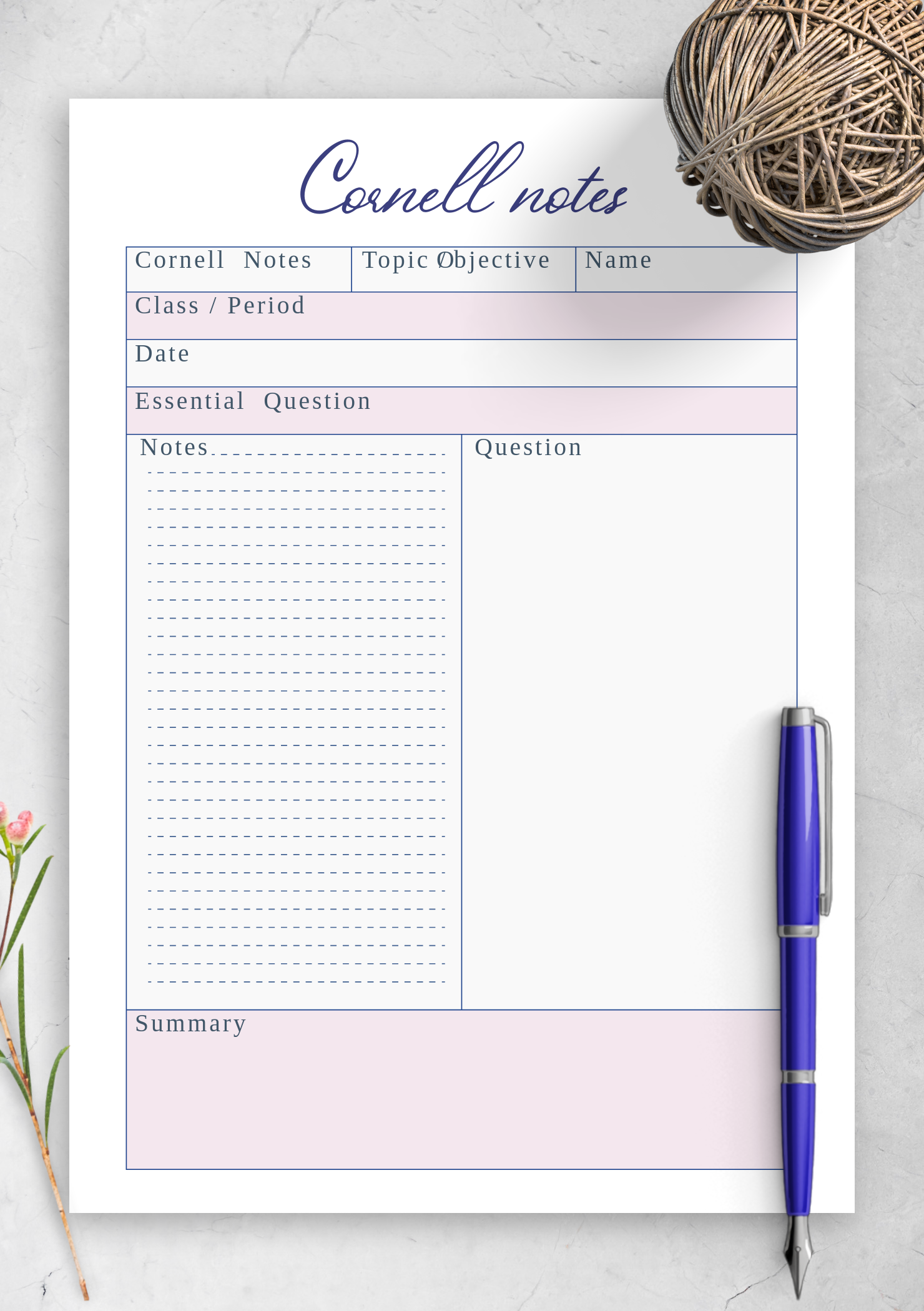
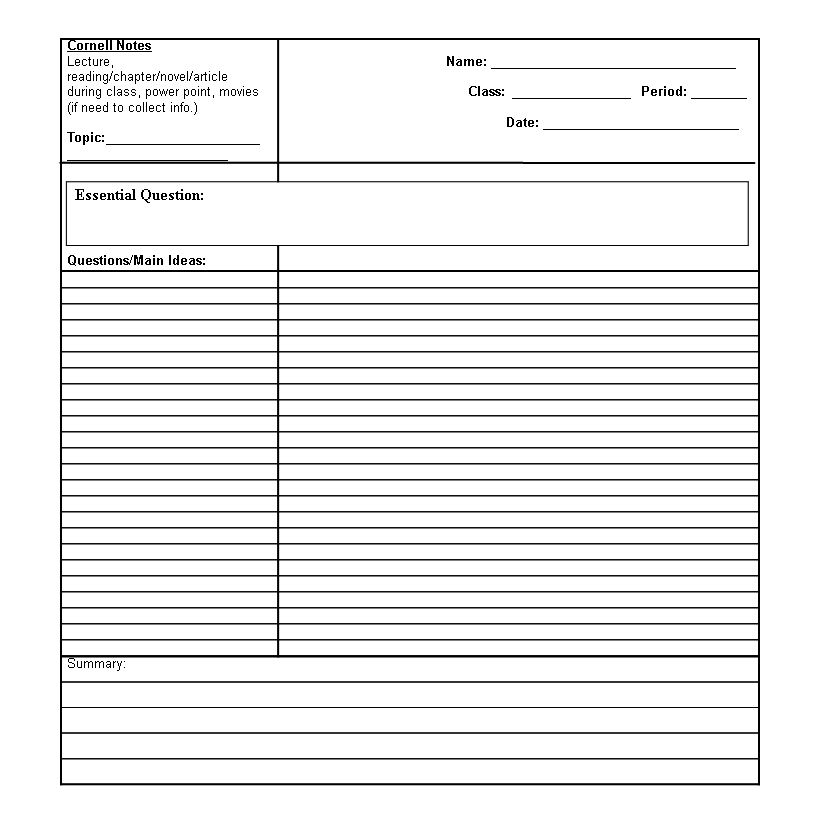
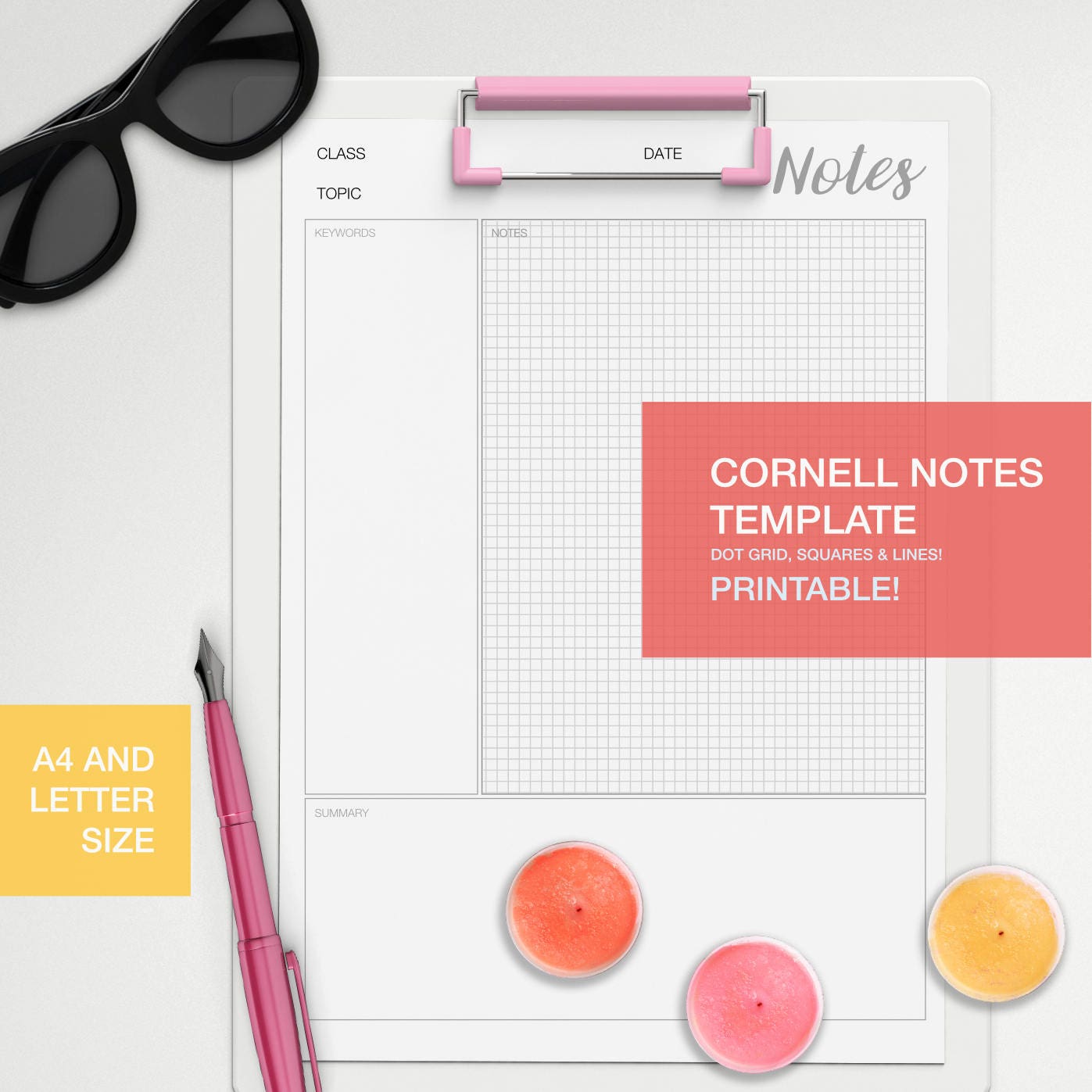
Before diving into creating a template in OneNote, it's crucial to understand the structure and philosophy behind the Cornell Note-Taking System. Its effectiveness lies in its simple yet brilliant page layout, which is divided into three distinct sections. This division encourages an active, rather than passive, approach to learning.

The Main Notes Area (Right Column)
This is the largest section of the page, occupying the main column on the right. During a lecture, meeting, or while reading, this is where you take your primary notes. The key is not to transcribe everything verbatim. Instead, focus on capturing the main ideas, concepts, and supporting details. Use shorthand, abbreviations, and bullet points to keep up with the speaker or text. The goal is to record information efficiently, leaving space to elaborate or clarify later if needed.
The Cues or Questions Area (Left Column)
The narrower column on the left is the Cues area. This section is left blank during the initial note-taking process. Shortly after the session (ideally within 24 hours), you review your main notes and formulate questions or keywords based on the information you recorded. For example, if your main notes mention "Mitochondria is the powerhouse of the cell," a good cue in the left column could be "What is the function of mitochondria?" or simply "Mitochondria function." This process of generating cues actively engages your brain, forcing you to think about the material and its potential test questions, which is a critical step in moving information from short-term to long-term memory.

The Summary Area (Bottom Section)
The final section is a space at the bottom of the page, typically a few inches high. This is the Summary area. After you've filled out your main notes and cues, you write a one or two-sentence summary of the entire page's content. This action forces you to synthesize the information and identify the most critical takeaways. Writing a summary is an excellent way to check your understanding of the topic. When it's time to review for an exam, reading these summaries provides a quick, high-level overview of all your lecture notes.
Why OneNote is the Perfect Tool for Cornell Notes
While the Cornell method was born on paper, its principles are perfectly suited for a digital environment, and Microsoft OneNote stands out as an ideal application. The combination of OneNote's flexibility and the Cornell system's structure creates a powerful tool for modern learners.

Infinite Canvas and Flexibility
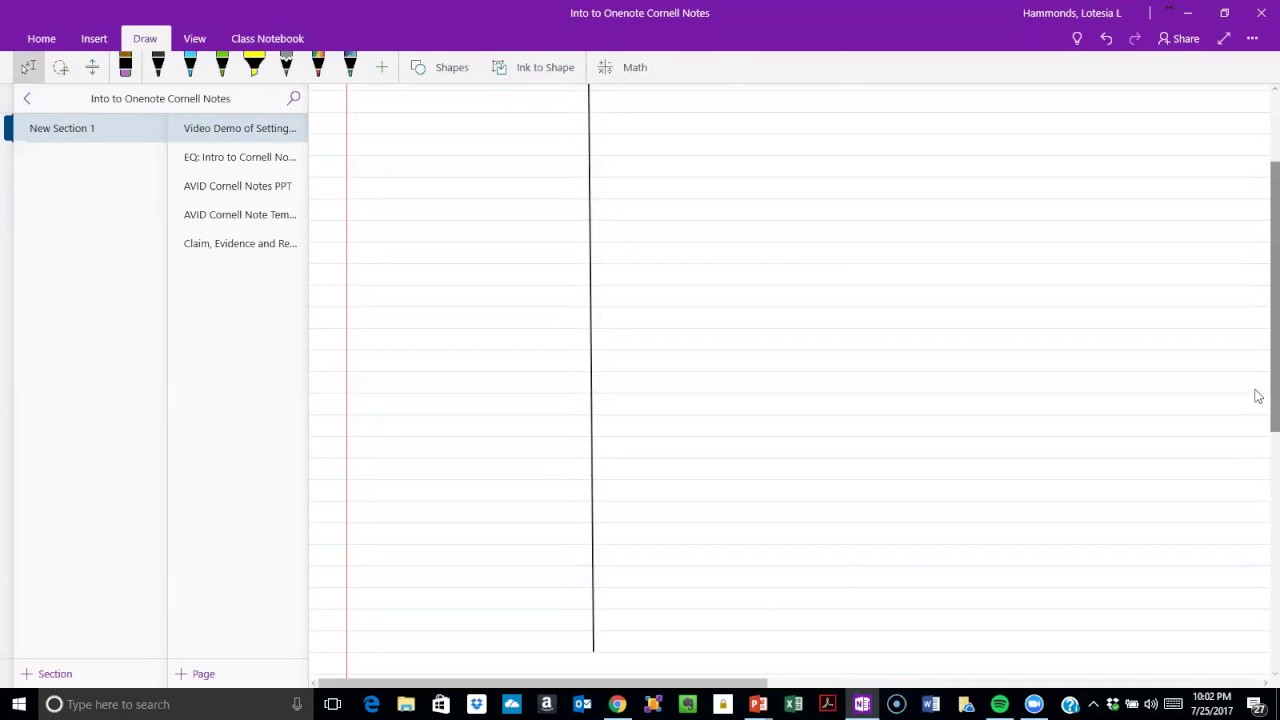
OneNote's "infinite canvas" means you never run out of space. Unlike a physical page, you can expand your notes in any direction. This is incredibly useful when you need to add more detail to a concept, insert a diagram, or paste a relevant screenshot without messing up your layout. You can easily resize the columns of your Cornell template on the fly if one section requires more room than another.
Superior Organization
OneNote's hierarchical structure of Notebooks, Sections, and Pages is a perfect match for academic or professional organization. You can create a Notebook for each subject or project, Sections for different topics or chapters within that subject, and a new Page using your Cornell template for each lecture or meeting. This keeps all your related information neatly contained and easy to navigate.

Powerful Search and Tagging
The single greatest advantage of digital notes is searchability. OneNote can instantly search through all your typed text, and remarkably, even the text within images and your own handwritten notes. This means you can find a specific concept across an entire semester's worth of notes in seconds. Furthermore, you can use custom tags (e.g., "Important," "To-Do," "Question for Professor") to add another layer of organization, making it easy to filter and find critical information when it's time to study or prepare a report.
Multimedia Integration
With OneNote, your notes are not limited to text. You can embed a wide range of content directly onto your Cornell Notes page. This includes:
- Audio Recordings: Record the lecture directly in OneNote while you type. The audio syncs with your notes, so you can click on a sentence and hear what was being said at that exact moment.
- Images and Screenshots: Quickly snip and paste diagrams from slides, websites, or digital textbooks.
- Videos and Links: Embed relevant YouTube videos or link to external resources for deeper study.
- Digital Ink: If you have a tablet or a touchscreen laptop with a stylus, you can write or draw by hand, which is often cited as being better for memory retention.
How to Create Your Own Onenote Cornell Notes Template
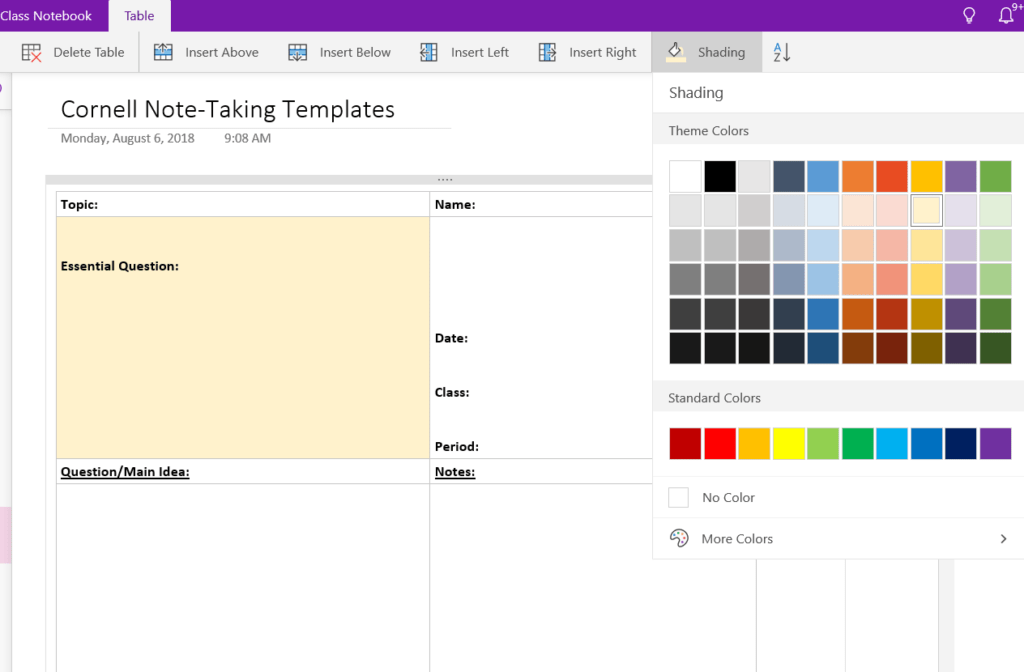
Creating a reusable template is a one-time effort that will save you countless hours in the long run. By setting up your own template, you can customize it perfectly to your needs. The easiest way to create the distinct columns of the Cornell system in OneNote is by using a simple table.
Step 1: Create a New Page
Start by opening OneNote and navigating to the Section where you want to store your template. Create a new, blank page and give it a title like "Cornell Notes Template."

Step 2: Insert a Table
Go to the Insert tab in the OneNote ribbon and click on Table. We need a layout with one row and two columns to start. This will create the Main Notes area and the Cues area. Don't worry about the size just yet; we'll adjust it.
Step 3: Adjust the Table Layout
Once the table is created, you'll see two columns of equal width. The Cornell method requires a narrower column for cues on the left and a wider one for main notes on the right.
- Hover your mouse over the vertical line separating the two cells.
- Click and drag the line to the left until the left column is about 2.5 inches wide and the right column takes up the rest of the page width.
- Click inside the right column (your main notes area). Press the Enter key several times to extend the height of the table down the page, giving yourself plenty of room to write.
Step 4: Add the Summary Section
The summary section is a separate area at the bottom. Below the table you just created, type a heading like "Summary" and draw a line above it to visually separate it from the main content. To draw a line, you can go to the Draw tab and use the line tool, or you can simply type a series of underscores (___) and press Enter.
Step 5: Add Placeholder Headings
To make your template clear, add placeholder text or headings within the table. In the left column, type "Cues & Questions." In the right column, type "Main Notes." This helps remind you of the purpose of each section when you use the template. You can also add a placeholder at the top of the page for "Topic/Date."
Step 6: Save the Page as a Template
This is the most important step. Once you are happy with the layout, you can set this page as the default template for the entire section.
- On the right side of the screen in the pages pane, right-click on your newly created "Cornell Notes Template" page.
- Select Set as Default Template.
- Now, every time you click the "Add Page" button within this specific section, a new, blank copy of your Cornell Notes template will be created automatically, ready for you to use.
Where to Find a Free Onenote Cornell Notes Template
If you'd rather not build one from scratch, there are many places to find a pre-made Onenote Cornell Notes Template that you can import and use immediately. This is a great option for those who want to get started quickly.
Built-in OneNote Templates
Depending on your version of OneNote (OneNote for Windows 10 vs. the desktop app, formerly OneNote 2016), you may have access to built-in page templates. You can access these by going to the Insert tab and selecting Page Templates. Browse the "Academic" or "Notes" categories to see if a Cornell-style layout is available.
Microsoft Office Template Gallery
Microsoft's official template website is a great resource. While it's more focused on Word, Excel, and PowerPoint, you can sometimes find community-submitted OneNote templates or get ideas for layouts that you can replicate yourself.
Educational Blogs and Productivity Websites
Many educators and productivity experts share their custom OneNote templates for free. A quick search for "free OneNote Cornell template download" will yield numerous results from blogs and websites dedicated to studying and organization. These are often well-designed and may include extra features you hadn't considered. Look for files that you can download and import directly into your OneNote notebook.
Online Communities like Reddit
Subreddits like r/OneNote are fantastic communities where users share tips, tricks, and custom templates. You can often find users who have shared their personal Cornell Note templates, complete with instructions on how to use them. This is also a great place to ask for recommendations or see how others have customized their layouts.
Advanced Tips for Supercharging Your Notes
Once you have your template set up, you can leverage OneNote's advanced features to take your note-taking to the next level.
Use Tags for Dynamic To-Do Lists and Study Guides
OneNote's tagging system is incredibly powerful. You can create custom tags to organize your notes.
- To-Do Tag: Mark action items from a meeting or concepts you need to research further.
- Question Tag: Tag areas you don't understand to ask a professor or colleague about later.
- Important Tag: Star key concepts that are likely to be on an exam.
The best part is the Find Tags feature. You can generate a summary page that pulls together all your tagged notes from across an entire notebook, instantly creating a customized study guide or a consolidated list of all your action items.
Link Your Notes Together
Create your own personal wiki by linking notes. If a concept in one lecture relates to something you learned weeks ago, you can create a direct link between the two pages. To do this, right-click on a page title in the navigation pane and select "Copy Link to Page." Then, you can paste this link into any other page. This creates a powerful web of connected knowledge, making it easier to see the big picture.
Embrace Digital Ink
If you use a device with a stylus, such as a Microsoft Surface or an iPad, take advantage of the Draw tab. Research suggests that the physical act of writing helps improve memory and retention compared to typing. You can handwrite your notes directly onto the template, sketch diagrams, and annotate PDFs or lecture slides that you've inserted onto the page. OneNote's handwriting recognition is so good that your handwritten notes become fully searchable.
Conclusion
The combination of a time-tested academic strategy and a powerful digital tool provides a clear path to more effective learning and information management. By implementing a Onenote Cornell Notes Template, you are not just taking notes; you are creating a dynamic, searchable, and organized knowledge base. The system's structure forces you to engage with the material on a deeper level—by summarizing, questioning, and reviewing—which is the key to true comprehension and long-term retention.
We've covered the core principles of the Cornell method, highlighted the distinct advantages of using it within OneNote, and provided clear, actionable steps for both creating your own template and finding one online. By incorporating advanced features like tagging, multimedia integration, and page linking, you can transform your digital notebook from a simple repository of information into an interactive study and productivity partner.
The initial effort required to set up and adapt to this system is a small investment that pays massive dividends in clarity, organization, and academic or professional success. So, take the next step: create your template, open it during your next lecture or meeting, and discover a more structured and powerful way to take notes.
0 Response to "Onenote Cornell Notes Template"
Posting Komentar